Connecting Instagram lets you schedule posts, reels and stories, and see your metrics without leaving Planer. This guide explains how to do it and what requirements to keep in mind.
Requirements
To connect Instagram with all the publishing features you need:
- A professional Instagram account (business or creator).
- That account must be linked to a Facebook Page.
- You must be an admin of that Page.
Personal Instagram accounts don't allow automatic publishing. Switch your account to professional from the Instagram app (it's free) before connecting it.
How to connect
- In Planer, go to Accounts or Settings → Connections.
- Click Connect next to Instagram.
- Log in with Facebook and accept the permissions we ask for.
- Choose the Facebook Page and the Instagram account you want to link.
- Confirm. You'll see your account connected in the list.
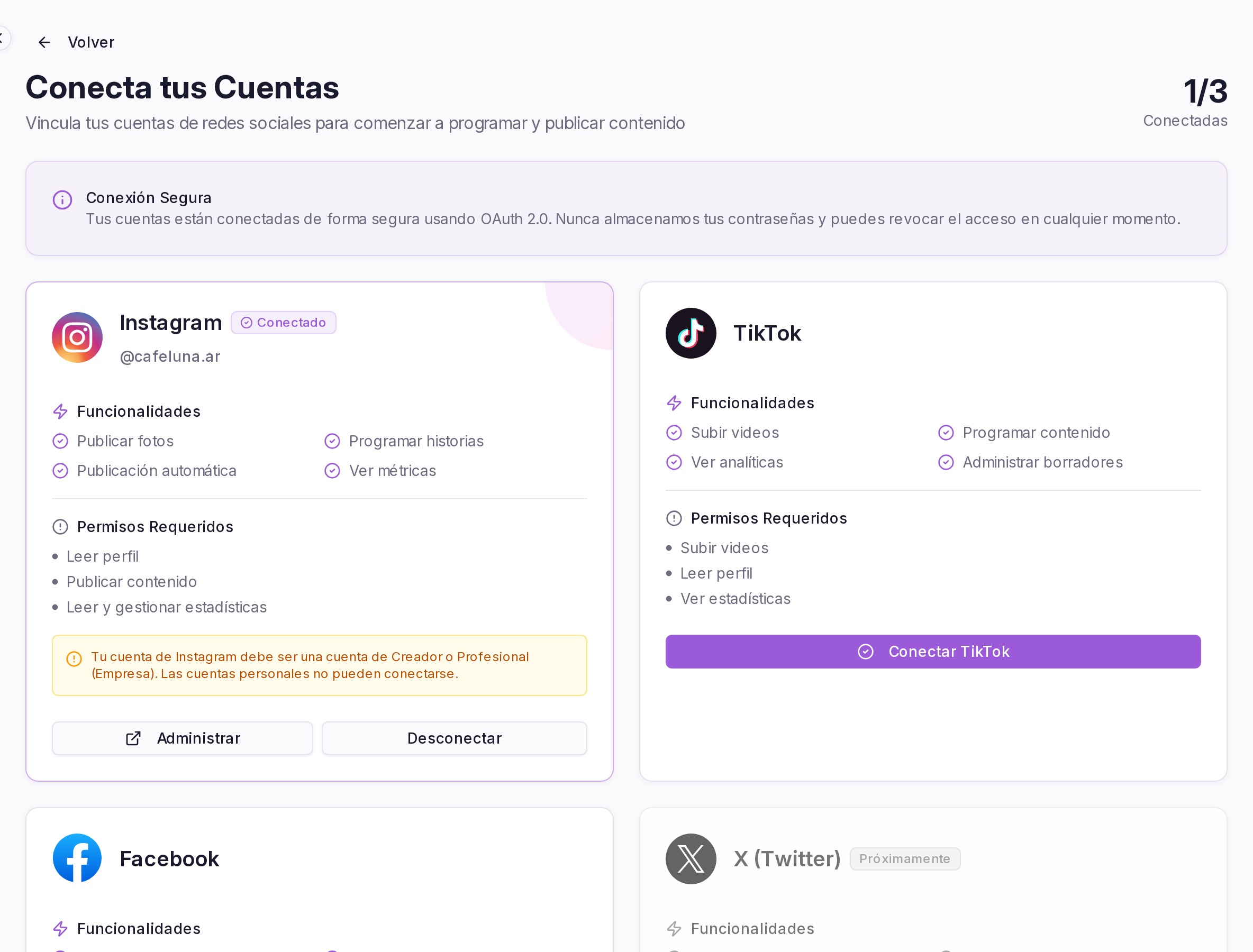
What permissions do we ask for, and why?
Planer only requests the permissions it needs to work:
- Publish content: to schedule and publish on your behalf.
- Read metrics: to show you analytics.
- Manage comments: if you use automatic replies.
We never publish anything without your confirmation, and we don't access private messages outside the features you turn on.
If something goes wrong
- Check that your account is professional and linked to a Page.
- Make sure you're an admin of the Facebook Page.
- If the connection expires, follow the guide to reconnect accounts.
Can't publish even though the account shows as connected? See why can't I publish?
Was this article helpful?